








Feature · In the next app update

Save it to your Google Drive. Share it with a link.

Save your videos and whole projects to your own Google Drive, straight from the app. We don’t limit how much you save. Press Share and you get a link anyone can watch in their browser, with no sign-in and no app to install. And everything stays yours, even if you stop using Make It a Video.

Uses your own Google Drive space. How much you can save

Illustration. The file names and sizes are examples.

Watch it in action

Google Drive sharing

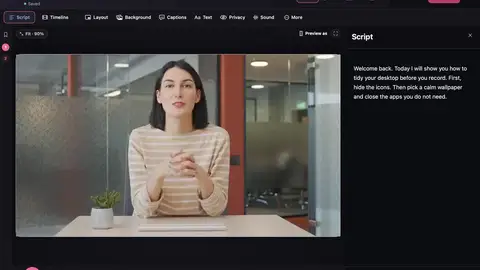
0:33 · A walkthrough of the real app

Recorded before sharing launched. Google Drive sharing is now available.

Read the transcript

Here's a sneak peek at sharing from your own Google Drive. It's coming soon. Your videos are saved in your own Drive, so they always stay yours. Open Settings, then Sharing, and connect your Google Drive. Then share a video with a link. People watch it on a clean page, and Google never shows. Free lets you share up to three videos at a time. With Pro, add your own colours and logo, a password, and even your own web address. Watch this space.

Explore all video tutorials →

How much you can save

We don’t set a limit on how much you save. Your videos and projects go into a “Make It a Video” folder in your own Google Drive, so you can save as much as your Drive has room for.

Every Google account comes with free space, shared with Gmail and Google Photos (15 GB at the time of writing), and Google sells more if you need it. The app shows how much of your Drive is used, and tells you when it’s nearly full.

How much room you have depends on your Google account, not on us. Shared links have their own limit: 3 at a time on the free plan, and up to 500 with Pro.

What you can save

Finished videos

Choose “Save a copy to Google Drive” on any video. It goes into your Make It a Video folder.

Whole projects

Save a project with everything in it, so you can open it again and keep editing. Only what Google Drive doesn’t already have is sent.

Open on another Mac

Open a saved project on another Mac. It’s added as a new project, so nothing you already have is replaced.

See what’s saved

See everything the app has saved in your Drive. Download it or move it to the bin from inside the app.

Space at a glance

Settings shows how much of your Google Drive is used, so you know when to clear some space.

Only its own files

The app can only see the files it saves there. The rest of your Drive stays private.

How sharing works

One press

Press Share on a video or in the editor. The link is ready as soon as the video has finished saving.

Kept in your Google Drive

The video you share goes into the same “Make It a Video” folder in your own Google Drive.

Watch in any browser

People open the link and the video plays on our page. They don’t need an account, and they never see your Google Drive.

Stop sharing any time

Stop a link and it stops playing. Copies someone already downloaded can’t be taken back.

Free shares three

The free plan keeps up to 3 videos shared at a time. Stop one to share another.

Pro shares up to 500

Pro keeps up to 500 links going, and adds the extras below.

Your own watch page

Your link opens a clean page where your video plays. With Pro, that page shows your logo and your colours.

Illustration. The firm name, video and comments are examples.
Pro

Your logo and colours

Add your logo and pick the background and button colours. The page looks like yours, not ours.

Pro

Your own web address

Show your links on an address of your own, like videos.yourfirm.com. You add the records where your domain is managed.

Pro

On your website

Put a video on your own site as a round bubble in the corner or a wide player. Copy the code and paste it in. You choose which websites may show it.

Password-protected videos

Add a password to any shared video, and only people who know it can watch. Change the password whenever you like: anyone already watching will need the new one. Take it off and anyone with the link can watch again.

Passwords come with Pro. A video with a password can’t also be shown on your website.

Comments from viewers Coming soon

Let viewers leave a comment under your video. They just type their name; there’s nothing to sign up for. You can choose to approve each comment before anyone else sees it.

Every comment is also saved in a file beside the video in your own Google Drive, so you keep them. You can switch comments off at any time, and the ones already written are kept.

Comments are built into the app and come with Pro. We’re finishing the last checks before we switch them on.

Yours to keep

Normal files in your Drive

Your videos are ordinary video files. Download them, move them or share them with Google’s own tools whenever you like.

Stop any time

Disconnect Google Drive, cancel Pro or stop using the app, and your videos stay right where they are.

Your links, your choice

When you disconnect, choose to keep your links playing or stop them straight away.

Free and Pro

Free

On the free plan

Save videos and whole projects to your Google Drive. Share up to 3 videos at a time with a link.

Pro

With Pro

Up to 500 links, passwords, your logo and colours, your own web address, videos on your website, and comments when they arrive.

How to start

  1. 1

    Connect Google Drive

    Open Settings in the app and choose Connect Google Drive. You need to be signed in to Make It a Video, which is free.

  2. 2

    Allow it in your browser

    Choose your Google account, leave the Google Drive box ticked, and allow Make It a Video to save files.

  3. 3

    Save or share

    Choose “Save a copy to Google Drive” on a video, “Save project to Google Drive” on a project, or press Share to get a link.

Questions

How much can I save?

As much as your Google Drive has room for. We don’t set a limit; the space comes from your own Google account.

Do people need an account to watch?

No. Anyone with the link can watch in their browser. Add a password with Pro if only some people should see it.

Do I need a Google account?

Only to save or share in Google Drive. Everything else works without one, and your projects stay on your Mac unless you choose to save them there.

Can Make It a Video see the rest of my Drive?

No. The app can only see the files it saves in its own folder.

What happens if I stop using the app?

Your videos and projects stay in your Google Drive. They’re yours, and you can download, move or delete them like any other file.

Is anything kept on your servers?

To make shared videos start quickly, our server keeps a copy for a while after someone watches. The details are in our privacy policy.

Do I have to share?

No. Saving and sharing are optional. You can still save an MP4 to a folder on your Mac and send it however you like.

How many videos can I share?

Up to 3 at a time on the free plan, and up to 500 with Pro.

Make your next video on your Mac.

  • Free to startRecord, edit and save a finished video on the free plan.
  • No watermarkNot even on the free plan.
  • Stays on your MacYour projects and recordings are saved on your Mac.

Requires macOS 15 or later.