










Feature

Record your screen. Keep your face in it.

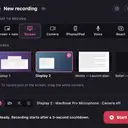
Choose New recording, pick what to capture from live pictures of your screens and windows, and talk it through. Or bring in a recording you already made and edit it the same way.

The New recording panel: choose Screen + cam, Screen, Camera, iPhone/iPad, Voice or React, then pick a display or window from live pictures.
Real app screen: Make It a Video 0.7.25 with sample data.

Six ways to record

Screen + cam

Your screen with your camera bubble alongside.

Screen

Just the screen, or a single window. Pick it from live pictures in the panel.

Camera

A talking-head video on its own.

iPhone or iPad

Record your phone or tablet over a cable, shown in a device frame.

Voice

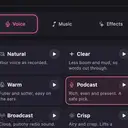
The voice studio: record takes, Clean up my voice, and watch a live level meter.

React

React to a video from a link or a file, with your camera alongside.

Built for a clean take

Teleprompter

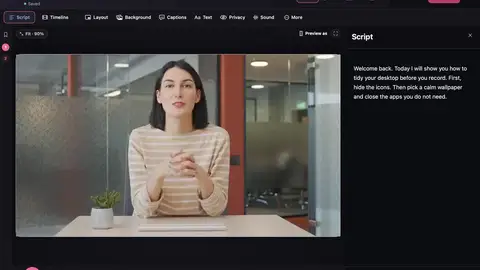
Your script on screen while you record. Follow my voice scrolls as you speak, on your Mac.

Never in the video

The countdown and the recording bar never appear in the recording.

Pause and stop from anywhere

⌘⇧P pauses or resumes and ⌘⇧2 stops the recording from any app.

Record in clips

Record several clips, then open them together as one project.

Crash-safe autosave

Recordings survive a crash.

Tidy desktop

Hide desktop icons and the Dock icon, set an exact window size, and use the loupe zoom.

Import a video

Already recorded something? Import a .mov, .mp4 or .m4v file and edit it the same way.

Automatic tidy

When you stop, ums, false starts, repeats and long pauses are cut for you. How it works.

A good first take

Short, focused takes are easier to edit than one long ramble. Pick a task with a clear start and end, make your screen text big enough to read on a phone, and do a ten-second test so you can hear your microphone before the real thing.

  • Close notifications and apps you don’t want on screen.
  • Increase the size of small text, or plan to zoom in on it later.
  • Talk as if you’re showing one person. You can cut the stumbles afterwards by deleting the words.

The first time you open the app, a checklist walks you through allowing screen recording, microphone and, if you want them, camera and speech recognition. See Mac permissions if the recording comes out blank.

In the app

Record your voice with your script following along, and a recording bar that never appears in the video.

Questions

Can I record my screen and camera at the same time?

Yes. Choose Screen + cam in New recording. Your camera appears in a bubble you can restyle afterwards.

Can I record my iPhone or iPad?

Yes. Connect it with a cable and choose iPhone/iPad in New recording. It’s shown in a device frame.

Can I edit a video I recorded somewhere else?

Yes. Import a video you already have and edit it the same way, including cutting by the words.

Is there a time limit on recordings?

Make It a Video doesn’t advertise a recording time limit on Free. Shorter takes are easier to edit and export faster.

Make your next video on your Mac.

Free to download. No watermark on Free exports. Requires macOS 15 or later.