







Six ways to record
Screen + cam, screen, camera, iPhone or iPad, voice, or react to a video.
 The real editor
 All featuresEverything the app does
 Automatic tidyUms and pauses cut for you
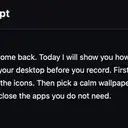 Edit by the wordsDelete words to cut the video
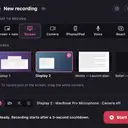 Screen and cameraScreen, camera, iPhone, voice
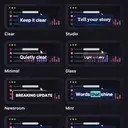 Captions and textStyles gallery, made on your Mac
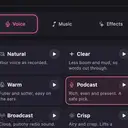 Sound and musicVoice styles and free music
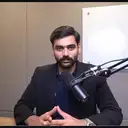 PrivacyFind and cover private info
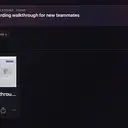 ScreenshotsThe real editor, up close
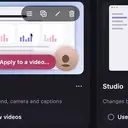 Beta releasesWhat changed in each version
 RoadmapWhat we’re building next
Free · macOS 15 or later · Presenters are licensed stock footage.
Free Mac app · sign in to start
Record your screen and camera. Cut mistakes by deleting the words. Frame it for every platform. Then save the finished video on your Mac.
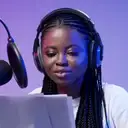
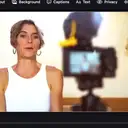
Illustration. Presenters are licensed stock footage.

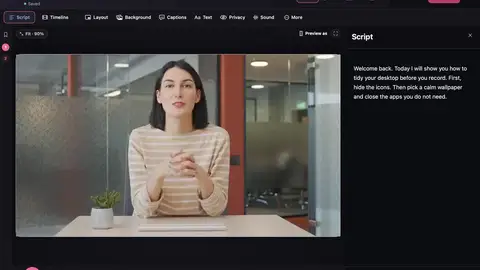
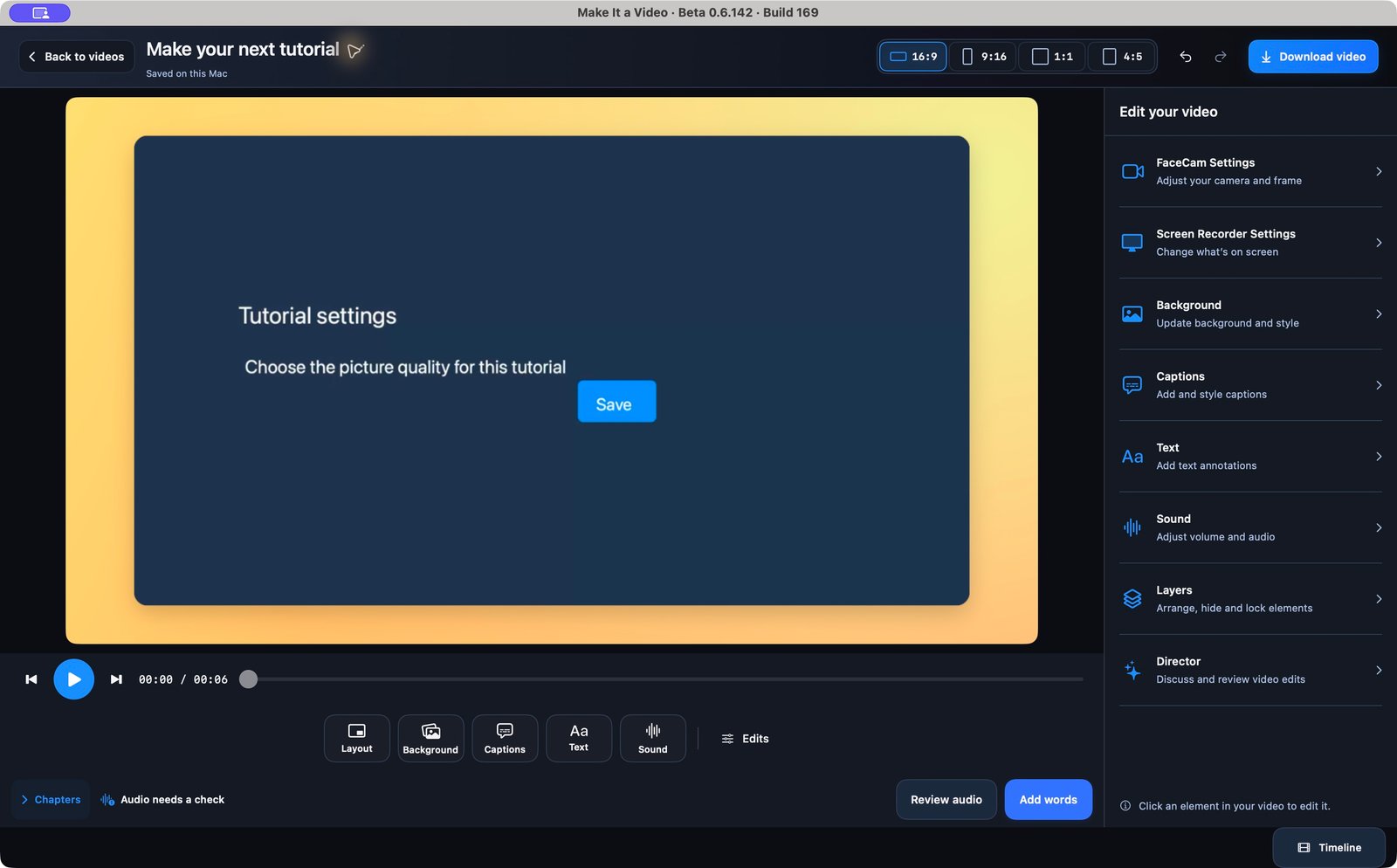
Real app screen: Make It a Video 0.7.25 with a sample project. The presenter in the video area is licensed stock footage.
One app for
A raw recording is just footage. Make It a Video turns it into a story people actually finish watching.
How it works
Capture your screen with your camera alongside. Just press record and talk it through.
Delete “um, just” from the transcript and the matching moment leaves the video. Undo is always there.
Add a background, breathing room, rounded corners and a camera frame. Raw footage becomes a finished piece.
Move in close on the detail you want people to see, so nothing is too small to read.
Switch between 16:9, 9:16, 1:1 and 4:5, then download a finished video to a folder you choose.
Try it
Here are the controls from the editor, working on a real capture. Change the format, background, spacing and camera, and the frame keeps up.
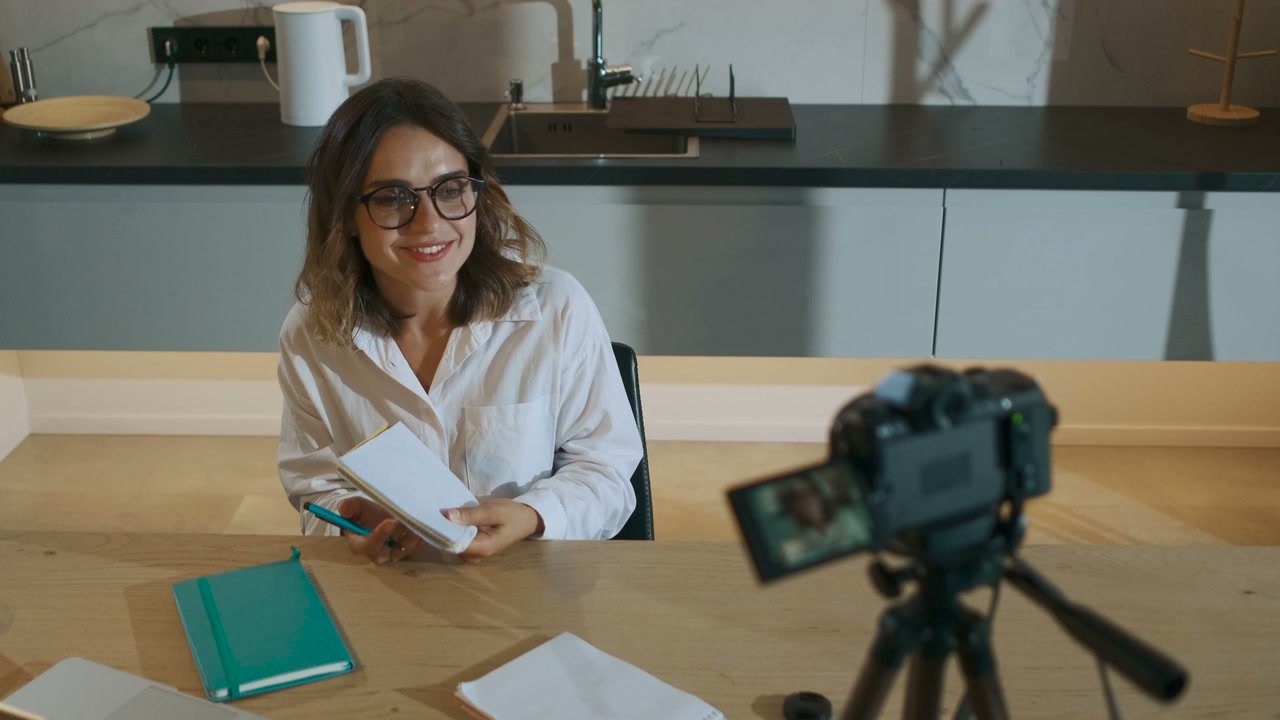
Let me show you how it works.
This web preview doesn’t export anything. The editor screenshot is real; the presenter is licensed stock footage.
Automatic tidy
When you stop, Make It a Video cuts the ums, false starts, repeats and long pauses, cleans up the sound and sets the camera layout. Review every change, or go back to the original at any time.
Illustration of the Automatic tidy summary, not a screen capture.
Features
Everything below is in the free plan.
Screen + cam, screen, camera, iPhone or iPad, voice, or react to a video.
Follow my voice scrolls your script as you speak. It never appears in the video.
Bring in a video you already have and edit it the same way.
A voice studio with takes, Clean up my voice and a live level meter.
Ums, false starts, repeats and long pauses cut when you stop recording.
Delete words in Script to cut that moment from the video.
Break a long walkthrough into sections people can follow.
Find private info like emails, keys and card numbers, and cover it. Or cover any area.
Add zooms, restyle the cursor, and show clicks and keys on screen.
Padding, corners, shadow and Tilt in 3D. Switch between camera and screen.
Use the built-in backgrounds, or bring your own images and videos.
Add and style captions so people can follow with the sound off.
Voice styles, noise removal and free music that lowers under your voice.
Save a whole style and use it for every new video.
Privacy
Plans
Free exports finished videos with no watermark. Pro adds 4K, templates, intro and outro kits, auto short clips and Write my script for £40 a year.
£0
Everything you need to record, edit and export a finished video.
£40per year · about £3.33 a month
For creators who publish often and want every video on brand.
Pro isn’t on sale yet, and no payment is taken on this page. *Write my script and Edit by asking use Apple Intelligence on macOS 26; simpler versions work without it. Voiceover uses Mac voices. Everything runs on your Mac.
FAQ
No. Free exports a local MP4 up to 1440p with no watermark.
Yes. You sign in when you first open the app. Your account opens the app; your projects and recordings stay on your Mac.
Yes. Make It a Video is a native Mac app. There’s no browser editor.
Projects are saved on your Mac. When you download a finished video, you pick the folder.
Select spoken words in the transcript and delete them, and the matching moment is cut from the recording. Fixing a typo in a caption is a separate edit and doesn’t cut anything. Undo is always available.
16:9 for YouTube and tutorials, 9:16 for Reels, Shorts and TikTok, 1:1 for feeds, and 4:5 for portrait posts, all from the same project.
Free costs £0 and exports MP4s with no watermark. Pro will be £40 a year and adds 4K export, platform pack export, batch export, project templates, logo, intro and outro kits, client brand kits, your own fonts, extra creative collections, auto short clips, step-by-step guides, caption language packs, technical vocabulary packs, and Write my script, Edit by asking and Voiceover from script, all on your Mac. Pro is coming soon.
No. The presenters are licensed stock footage used to illustrate the app. They aren’t customers and don’t endorse it.
Tutorials, demos, lessons, updates and pitches. If you can explain it out loud, you can make it a video.
Licensed stock footage of presenters, not customers.
Download Make It a Video for your Mac, sign in when it opens, and make your first video. Free costs nothing.
Requires macOS 15 or later. The app isn’t notarised by Apple yet, so macOS warns you the first time. Here’s how to open it.