








Feature

Captions people can follow with the sound off.

Most social video is watched muted. Add captions from your transcript, style them to fit the frame, and place text annotations exactly where they help.

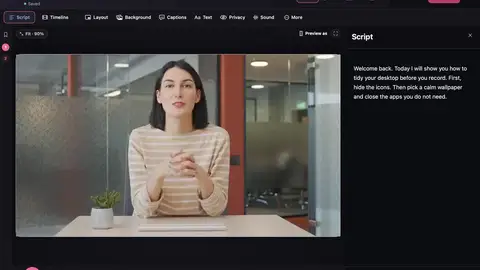
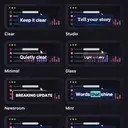
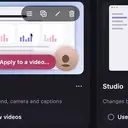
The Captions panel with a gallery of caption styles, grouped Clean, Bold, Social and Creative.
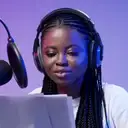
Real app screen: Make It a Video 0.7.25 with sample data. A licensed stock presenter is shown in the video area.

Captions and annotations

Styles gallery

Clean, Bold, Social and Creative caption styles with live previews.

Make it yours

Change the colours, font and motion: fade, rise, pop, bounce, typewriter, slide or word by word.

Caption files

Export captions as .srt or .vtt to upload alongside your video.

Fix the wording

Correct a name or spelling in the caption text without touching the recording.

Text

Place annotations exactly where you need them: a label, a step number, a warning.

Layers

Arrange, hide and lock what sits on top of your recording.

Tips for readable captions

  • Keep captions clear of the part of the screen you’re demonstrating.
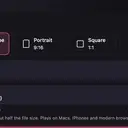
  • In 9:16, place captions where platform buttons won’t cover them.
  • Check names and product terms. Recognised speech often gets them wrong.
  • Preview the finished MP4 on a phone before posting.

Step-by-step: Add captions to a screen recording.

Try the styles

A quick illustration of how the style groups differ.

Questions

Do captions come with the free plan?

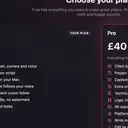
Yes. Captions are part of Free. Pro adds caption language packs that translate captions on your Mac.

Is my audio uploaded for captions?

No. Transcription runs on your Mac using Apple’s speech recognition, so your audio isn’t uploaded.

If I correct a caption, does the video change?

No. Correcting caption text changes only the written words. Nothing is cut.

Make your next video on your Mac.

Free to download. No watermark on Free exports. Requires macOS 15 or later.