








Feature

One recording. A video and a written guide.

Some people would rather read than watch. With Pro, Make a guide turns your video into a how-to with numbered steps and screenshots.

  • Free plan
  • No watermark
  • macOS 15 or later
Make a guide: numbered steps on the left, a screenshot with a marker, and Save as PDF and web page.

The problem

Some people would rather read than watch.

  1. Writing the steps out after you record

    A written guide made from your video, with Pro

  2. Taking screenshots one at a time

    A zoomed screenshot for every step

  3. One format for everyone

    PDF, web page or Markdown

Watch it in action

Guides from your video

0:34 · A walkthrough of the real app

Read the transcript

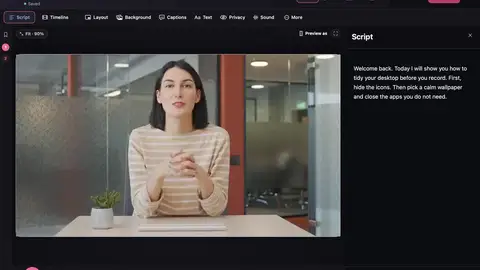
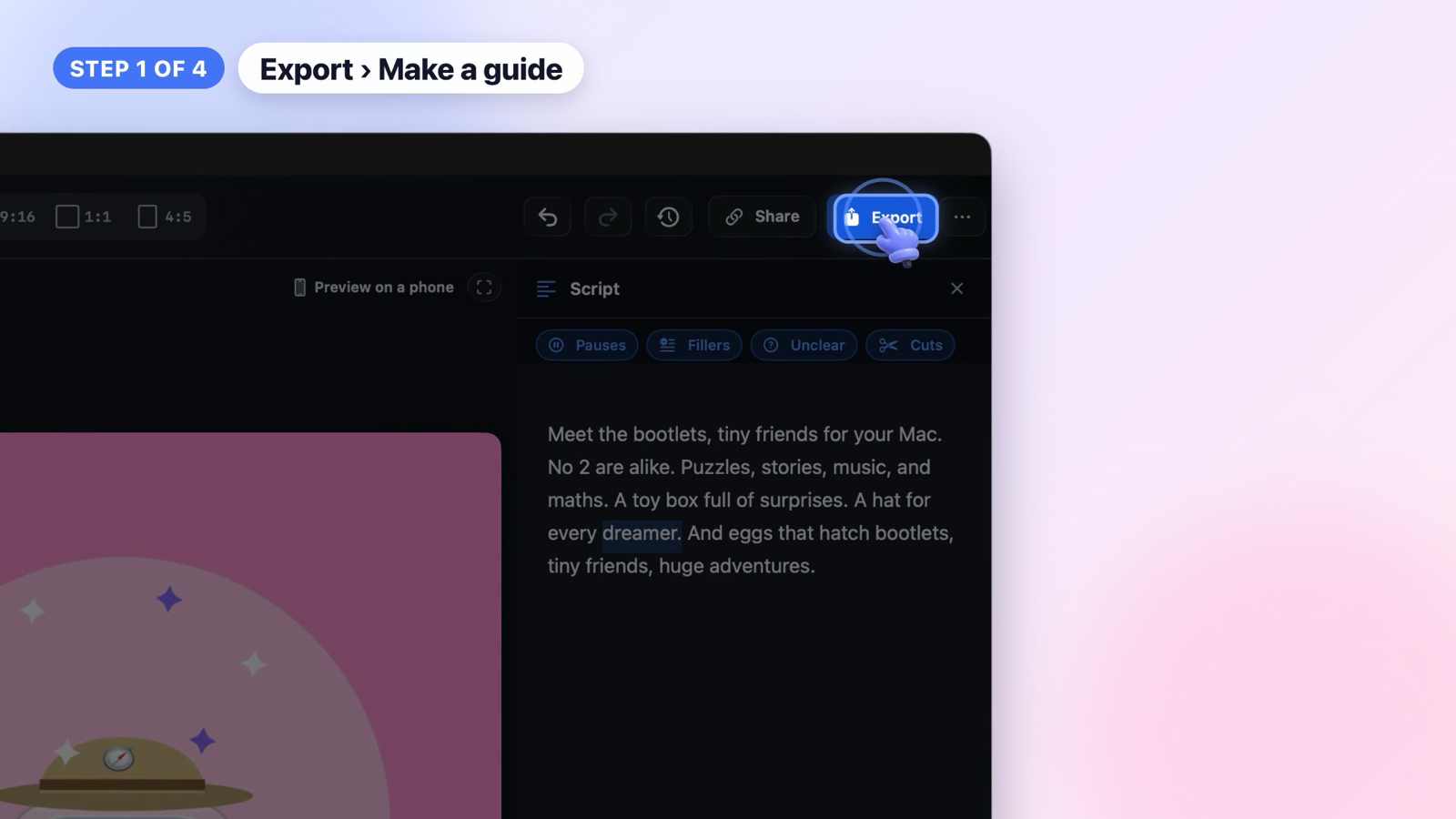
Turn one recording into a step by step guide. Here's how. In Export, choose Make a guide. Each step gets a short instruction from what you said, and a picture of the moment you clicked. Private details are covered in every picture. Edit, merge or remove steps, and move the hotspot if you need to. Then choose Save guide. You get a branded PDF, and a web page that people can click through, step by step. One video. A guide for free. Guides come with Pro.

Explore all video tutorials →

What you get

Numbered steps

Each step has a short instruction and a zoomed screenshot with a numbered marker.

Your brand

Your logo and colours, with steps grouped into parts, tips, shortcuts and a summary.

PDF

A tidy PDF to send or print.

Web page

A page people click through step by step, or see all at once. It works offline.

Markdown and Confluence

Paste into Notion or GitHub, or a Confluence page.

In the app

Questions

Is this in the free plan?

No. Guides come with Pro. See current prices and payment options. Buy it in the app: open Plans and choose Upgrade to Pro.

Is my video uploaded to make the guide?

No. The guide is made on your Mac.

Try a real guide, made in the app

Open the interactive web guide, click through its five steps, or download the PDF. These are actual exported files, with the screenshots and wording saved in the app.

A screenshot from the exported five-step guide

One recording. Two ways to follow.

Share a PDF for reading or printing, or a web guide people can open in their browser. Review the step wording and pictures before sending it.

In the app: open your video, choose Export, then Make a guide. You can also press ⌘K and search for “guide”.

Making guides is a Pro feature. These examples are free to explore.

Explore all 15 video tutorials →

Make your next video on your Mac.

  • Free to startRecord, edit and save a finished video on the free plan.
  • No watermarkNot even on the free plan.
  • Stays on your MacYour projects and recordings are saved on your Mac.

Requires macOS 15 or later.