










Help centre
How can we help?
Answers to the most common questions. Can’t find yours? Contact support.
Getting started
Install and open the app
How to download, install and open Make It a Video on Mac for the first time, including the macOS warning and Open Anyway.
System requirements
Make It a Video runs on macOS 15 or later. It’s a native Mac app; there is no Windows or browser version.
Updating the app
How Make It a Video updates itself from version 0.7.16, and where to download the newest build.
Account
Signing in and your account
How to sign in to Make It a Video with your email and password, create an account, reset a forgotten password, and keep projects separate per account.
Pro, billing and cancelling
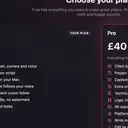
What Make It a Video Pro will include, how much it costs, and how to manage or cancel a subscription.
Recording
Mac permissions
Which macOS permissions Make It a Video needs and which are optional, and how to fix a black or silent recording in System Settings.
Keyboard shortcuts
The most useful Make It a Video keyboard shortcuts: ⌘K quick actions, ⌘⇧R new recording, ⌘⇧2 stop from any app, J K L, I/O, ⌘E export and more.
Troubleshooting
Quick fixes for common Make It a Video problems: the app won’t open, blank recordings, no sound, and exports you can’t find.
Projects and files
Where projects and videos are saved
Make It a Video keeps projects and recordings in its library on your Mac (File › Show Library in Finder) and exports finished MP4s to a folder you choose.
Exporting a finished video
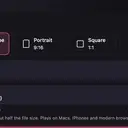
How to export a finished MP4 from Make It a Video: Compatible (H.264) or Smaller (HEVC) up to 60 fps, 1440p on Free and 4K on Pro, plus captions, audio and GIF files.
Make your next video on your Mac.
Free to download. No watermark on Free exports. Requires macOS 15 or later.