








Welcome, AppSumo buyers.
You’ve already paid through AppSumo. Download the Mac app, sign in and apply your code to unlock Pro for good. No card or extra payment needed.
Redeem in the app, in five steps
Use “Have a code?”, not “Upgrade to Pro”
The yearly price in the picture is for a new subscription. Your AppSumo code unlocks lifetime Pro without Stripe checkout. If you’re on a payment page, close it and return to Plans in the Mac app.
- 1
Download the app
Download Make It a Video for Mac and open it. It needs macOS 15 or later.
- 2
Create your free account
Create your free account when the app opens, or sign in if you already have one.
- 3
Open Plans in the Mac app
Find the Pro card and click Have a code?, just below Upgrade to Pro. The arrow in the picture shows you where.
- 4
Paste your AppSumo code and press Apply
Paste the full code from your AppSumo purchase into the Code field, then press Apply. Redeem it on the account you want to keep using.
- 5
Check that Pro is on for good
Wait for the app to confirm lifetime Pro. There is nothing more to pay and nothing to renew. One code per account. Your videos stay on your Mac.
Code not working, or already used? Email hello@makeitavideo.com with your AppSumo order number and the email you signed up with. Don’t post your code publicly.
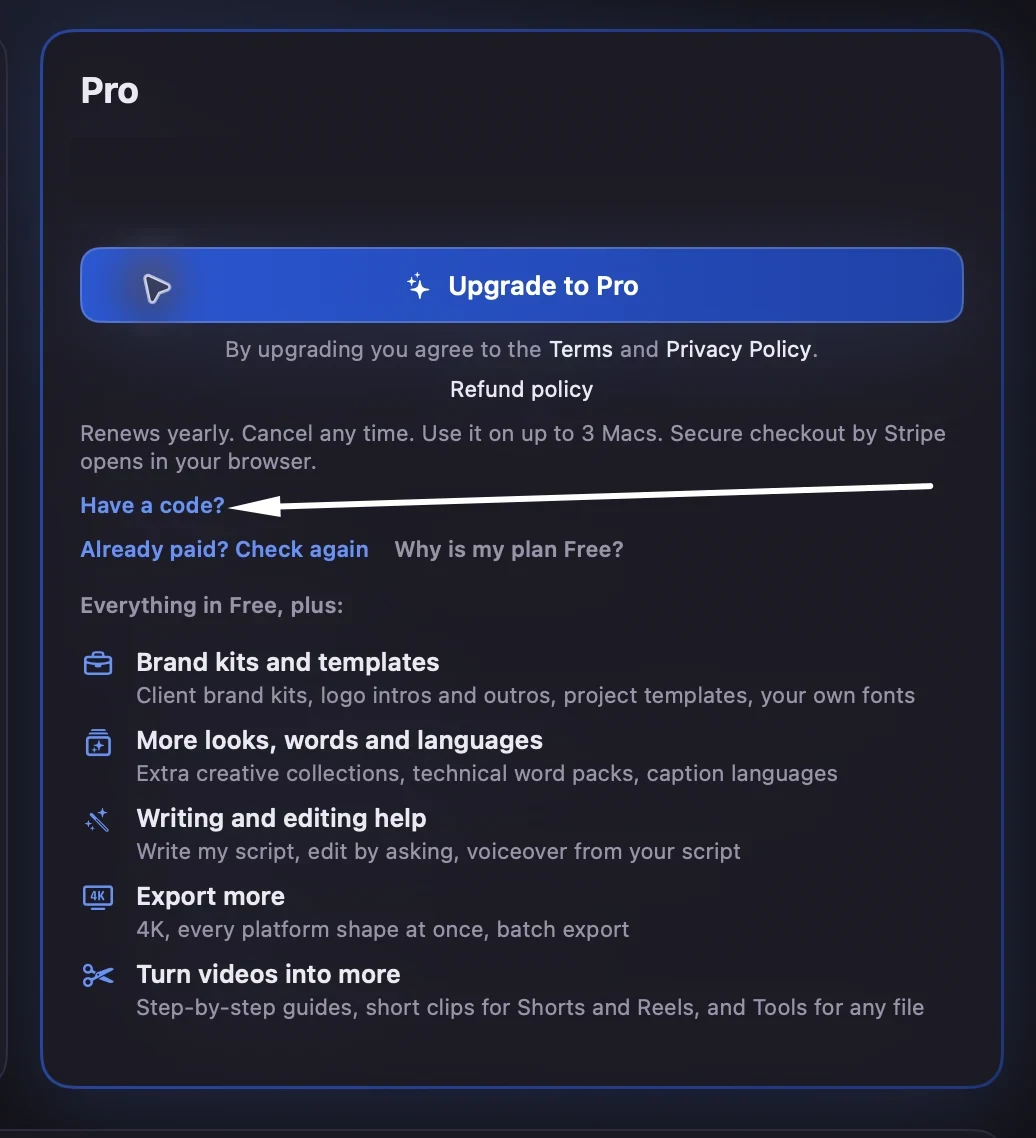
The arrow points to the link you need. Select the picture to enlarge it.
What Pro gives you
4K and every shape at once
Save in 4K, and make wide, tall and square versions in one go.
Audio and video tools
Clean up audio, make captions and thumbnails, convert, resize and compress any file.
Step-by-step guides
Turn a video into a written how-to with screenshots, as a PDF or web page.
Your brand
Your logo, opening and closing clips, your own fonts and brand kits for clients.
Help writing
Write my script, Edit by asking and Voiceover from your script, all on your Mac.
Up to 3 Macs
Use Pro on up to 3 Macs. It keeps working offline for 14 days at a time.