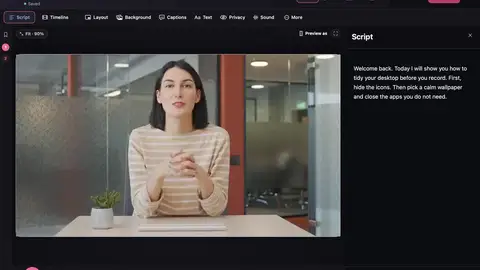
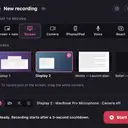
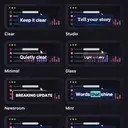
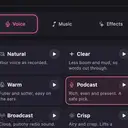
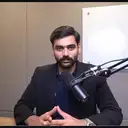







The first time you open Make It a Video, a welcome checklist asks for each permission once, in order, with a live preview.
| Permission | Needed? | What it’s for |
|---|---|---|
| Screen Recording | Required | Recording your screen |
| Microphone | For narration | Recording your voice |
| Camera | Optional | The camera bubble |
| Speech Recognition | Optional | Captions, the transcript and the voice-following teleprompter |
| Accessibility | Optional | Showing your keyboard shortcuts on screen |
Turn a permission on later
- Open System Settings → Privacy & Security.
- Open Screen & System Audio Recording and turn on Make It a Video.
- Do the same under Microphone, Camera, Speech Recognition or Accessibility as needed.
- Quit and reopen Make It a Video if macOS asks you to.
Still blank?
Make a short test recording after changing permissions. If it’s still blank, contact support and include your macOS version.