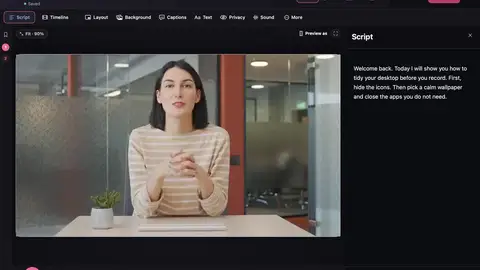









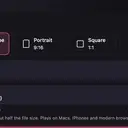




- Pick 16:9, 9:16, 1:1 or 4:5.
- Choose Export (⌘E).
- Choose Compatible (H.264, plays everywhere) or Smaller (HEVC, smaller files).
- Pick a folder. The export runs in the background and you’re notified when it’s done.
Quality
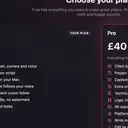
Free exports up to 1440p with no watermark, at up to 60 fps. Fit, Fill and Focus frame each shape. Pro adds 4K and the platform pack, which exports landscape, portrait and square versions in one go.
More files
Besides the MP4 you can export the audio, captions as .srt or .vtt, a GIF, the original files and thumbnails.
After exporting
The finish card shows the poster frame, size and length, with Play, Copy and Show in Finder. You can also copy a YouTube description with chapters.