















Make It a Video’s free plan exports finished MP4s with no watermark. Here’s how to export and what to check before you share.
Steps
- 1
Pick the format
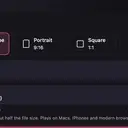
Choose 16:9, 9:16, 1:1 or 4:5 for where the video is going.
- 2
Choose Export
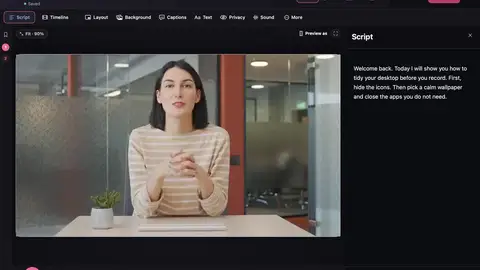
Choose Export at the top of the editor, or press ⌘E.
- 3
Choose a folder
Pick the destination in the save box and wait for the export to finish.
- 4
Check the file
Open the MP4 outside the editor. Check the start, every recent cut, the captions and the ending.
- 5
Keep the project
The MP4 is separate from the editable project. Keep both if you might want to change the video later.
Free and Pro
Free exports a local MP4 up to 1440p with no watermark. Pro will add 4K export. See pricing.